 iTVD
iTVD
How to Download Threads Videos on Android
On Android, downloading a Threads video is simpler than most people expect. The Threads app does not give you a save button for other people's videos, and the share menu only copies links. This guide walks you through the whole process using nothing but your browser and the downloader on this page, and the finished MP4 lands in your Downloads folder.
Android handles downloads in an especially friendly way. Files you save appear in the Downloads app, they are picked up by your gallery in many cases, and you can move them anywhere you like afterwards. There is nothing to install and no account to create.
The steps below work on any Android phone, in Chrome or any modern browser. Everything reads public posts only, saves videos as MP4 at the quality Threads serves, and never requests a login from your Threads or Google account. The same steps work on tablets that run Android.
The same process works whether you use the Threads app or the website, and whether you want one video or a whole collection. Each download stays on your phone exactly where Android puts it, and you decide later whether it belongs in the gallery, a movie folder, or anywhere else. This guide keeps each step short so you can finish before your connection changes.
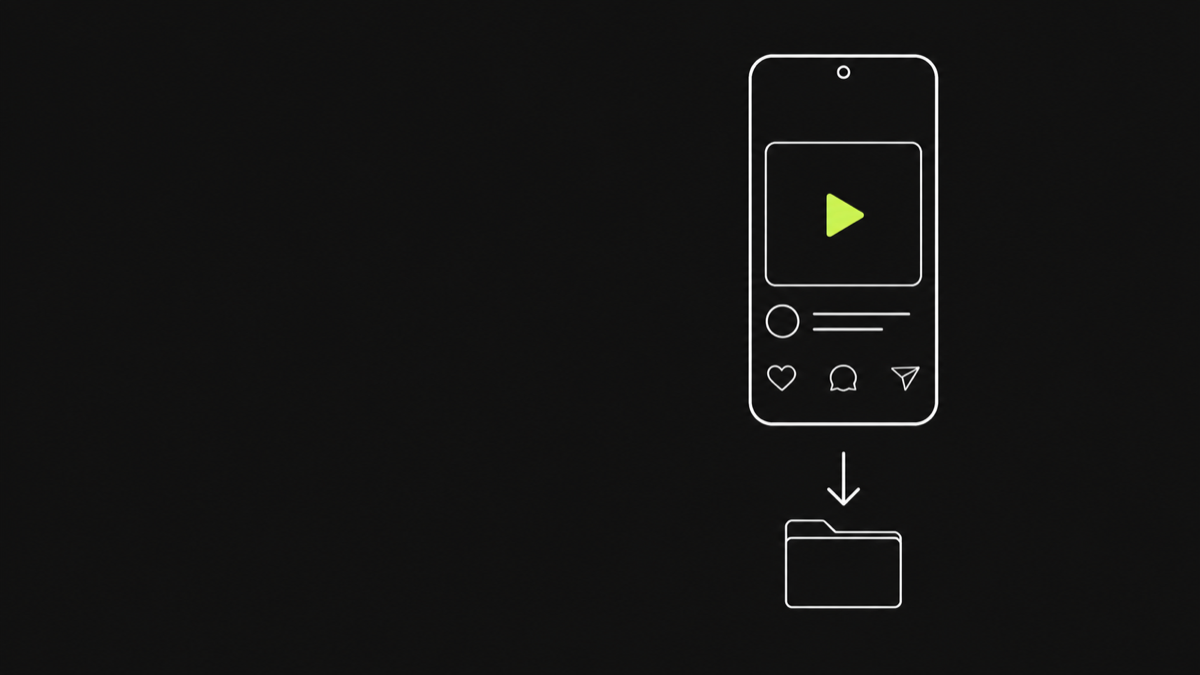
How to copy a link on Android
Open the Threads app and find the video you want to keep. Tap the share icon on the post to open the share sheet, then choose Copy link. The post URL is copied to your clipboard, ready to paste into the downloader.
The link has the form https://www.threads.net/@username/post/POST_ID. The trailing post ID is what tells the downloader which exact post to read, so always copy the link from the post itself. A reply or a repost carries its own separate link and its own media.
If you are using the Threads website on your phone, the browser share menu provides a copy link option as well. Both the app and the website produce the same URL format, and the downloader accepts either one.
After copying, it can help to paste the link into a note once so you can see it in full. A glance at the address confirms you have a real post link with a post ID at the end, which saves you from pasting a profile or reply link into the downloader.
Android's share menu sometimes lists extra actions depending on the phone, but Copy link is always present. If the share sheet feels crowded, scroll through the actions rather than guessing at icons. Samsung, Pixel, and other devices all expose the same copy option, so the method does not change between brands. The downloader only needs the plain post URL, so ignore any options that offer to send the post through other apps or services. Anything that produces the full threads.net address is exactly what you want.
Pasting the link and resolving the post
With the link on your clipboard, open this page in Chrome or any browser on your phone. Tap the input field and paste the link. You can paste manually, and on most devices a long press on the field offers the paste option.
Press the download button to resolve the post. In a moment the downloader shows the media attached to that public post. Each video appears as its own card with a preview, and images appear as separate cards too, so you can see exactly what you are about to save.
If the tool reports that no media was found, the post is probably text-only, private, or deleted. Public posts with real attached video always resolve and display their files here.
Resolving is fast because the server reads only the public page for the post you linked. There is no conversion step and no waiting queue, so the preview appears within a few seconds on a normal connection.
When the preview appears, give the post a quick check: the caption, the number of items, and the media thumbnails should all match what you saw in the app. If anything looks different, the link may point at a different post, and copying it again from the correct post fixes the mismatch. Resolving a second time is free and fast, so it is always cheaper to verify than to download the wrong file. For multi-item posts, scan the whole list before downloading anything, because each card is an independent file you can save or skip.
Where the MP4 lands on your phone
When you tap download, Android saves the MP4 into the standard Downloads folder. You can find it in the Downloads app, in your file manager under Internal Storage, or by using the search bar in the Files app.
The file keeps its media name from the downloader, so you can recognise it easily even when several downloads happen in a row. Many launchers also show a download notification when the save completes.
Because the file is a normal MP4, it plays in the built-in video player, appears in the share sheet, and can be uploaded to any service without conversion. If the video does not show up in your gallery automatically, that is expected on some devices: browse to the Downloads folder to see it.
Samsung and some other manufacturers add their own file manager apps that may use a slightly different layout, but every one of them exposes the same Downloads folder. If you cannot find the folder by name, use the search function in your file manager and type the media name.
The Downloads folder is also the place Android shows a notification with the file's progress. Let the notification finish before you open the file, because opening a partially downloaded video can produce a short or broken clip. Once the notification disappears, the MP4 is complete and ready to play. If your launcher hides download notifications, the file is still saved correctly in the background, so just check the Downloads app directly instead of relying on the notification. The Downloads app groups everything by date, which makes finding today's clips easy.
Moving videos to the folder you prefer
The Downloads folder works fine as a home for your videos, but you can move files anywhere. In the file manager, long-press the MP4, choose Move or Cut, and navigate to a folder such as Movies.
Some gallery apps scan their folders only occasionally, so a moved video can take a few minutes to appear in the gallery view. If it never appears, use the file manager directly, or set the folder as a scanned media folder in the gallery app settings.
Moving a file never changes its quality or format. The MP4 stays exactly as it was downloaded, which keeps playback identical no matter which folder you choose.
If you prefer to keep videos out of your gallery entirely, create a dedicated folder such as Movies or Threads Downloads and move files there. Galleries scan folders you choose, so organizing your downloads is just a matter of where you put them.
Organizing downloads early also makes backups easier. If you regularly keep Threads clips, a dedicated folder means you can copy that single folder to a cloud service or a computer instead of hunting through Downloads. And because the MP4 keeps its original quality, moving or copying it never degrades the video. The same principle applies to images, which you can sort into Pictures and subfolders by subject or date. Whatever system you choose, the downloader's job ends at the Downloads folder, and how you organize from there is entirely up to you. That separation is part of why the tool stays simple: no library of its own, no lock-in, just files on your phone.
Copy the post link
Open the video in the Threads app, tap the share icon, and choose Copy link. The post must be public.
Open the downloader
Go to this page on your Android phone using Chrome, Firefox, or any browser you prefer.
Paste the link
Tap the input field, paste the copied Threads link, then press the download button.
Preview and download
Check the preview shows the right clip, then tap its download button to save the MP4.
Find it in Downloads
Open the Downloads app or your file manager. The video is there with its media name.
Watch or move it
Play it from Downloads, or move it to Movies or any folder you keep videos in.
Frequently asked questions
Where do Threads videos download to on Android?
Every MP4 saves into the standard Downloads folder on your phone. Open the Downloads app or any file manager to find it, and it will be listed under its media name. The file name matches the media name, and the notification tells you when the save finishes. The Downloads app groups everything by date, so today's clips are easy to find.
Do I need a specific app to download on Android?
No. The downloader is a web page that works in Chrome or any browser. Your phone's built-in Downloads app is all you need to see the saved file. Any browser works, so you can switch between them freely without losing the ability to download. The flow is identical in every browser, so your usual choice works fine. Your usual browser is already enough.
Why did my downloaded video not appear in my gallery?
Downloads go to the Downloads folder first, and many galleries only scan that folder on a delay or not at all. Open the file manager to confirm the file, then move it to Movies or Pictures. Once moved, it shows up the next time the gallery scans that folder. Browsing to the folder directly is always faster than waiting on the scanner.
Can I download videos from private Threads accounts on Android?
No. Only public posts are readable on any device. Private and follower-only posts cannot be downloaded, and the tool never asks for a login. Public posts are the only content the tool reads, on Android just as on every other device. The public-only rule never changes, regardless of phone brand or browser. The public-only rule never changes anywhere. The boundary is identical on every phone.
Will the download work on slow mobile data?
Yes, the file streams straight to your browser like any normal download. Larger videos take longer on slow connections, but the resolution is whatever Threads serves for the post. The preview loads before the full file, so you can judge size and quality before committing. A steady connection helps large clips complete without interruption. Patience helps, and a steady signal helps more.
What format and quality will the video be?
Every video saves as MP4 at the resolution Threads serves for that post, with no re-encoding. Most posts are available up to 1080p when the creator uploaded a high-quality file. MP4 playback works in every standard Android video player, so no extra codec is needed. The MP4 plays in every standard player on Android, with no extra steps. Every standard Android player handles the MP4.
The download failed halfway. What do I do?
The signed link may have expired after 15 minutes, or your connection dropped. Resolve the post again for a fresh link and download it once more. A stable Wi-Fi connection reduces the chance of interruption for very large files. A fresh resolve gives the file a clean second run from the start. A fresh resolve gives the file a clean second run.
Can I download Threads images on Android with this method?
Yes. Resolve the post and each photo saves as a JPEG into the Downloads folder, where gallery apps usually pick it up automatically. JPEG files open in every gallery app, and they share the same Downloads-folder behavior as videos. Photos follow the same folder behavior and appear alongside your videos. Photos behave just like the videos in the folder. Just like the videos in the folder.
Also in Español · Deutsch · Français · Português · हिन्दी · Bahasa Indonesia · 日本語 · 한국어 · 简体中文 · العربية